
1Why AnyPlayer
AnyPlayer is an IPTV player: your provider's channels, TV guide, catch-up and library in one convenient app for TVs, set-top boxes, phones and tablets.
Set up from the website
Link the device with a code or QR code — the playlist, library and channel list arrive by themselves, no typing with the remote.
Your own channel lists
Remove what you don't need, reorder, rename groups and combine channels from several playlists — changes on the site reach the TV at once.
Catch-up and live pause
Past shows from the provider's archive, "Watch from the start" and pausing live TV even on channels without an archive.
Programme guide and TV guide
A programme guide for every channel and a TV guide grid for the whole group — see what's on now and what's next.
Resume where you left off
A film, an episode or a recording continues exactly where you stopped, even after the box was switched off.
Library
Your provider's films and series: categories, "New", unfinished titles first, filters, descriptions and ratings.
Any remote works
The box remote, your TV remote over HDMI-CEC and an air mouse; buttons can be reassigned or a ready-made scheme chosen.
Seven languages and support
Russian, English, German, Lithuanian, Latvian, Estonian and Polish. If something goes wrong, the player tells you what to do, and we answer in Help.
2Getting started
Setup takes a few minutes. Step-by-step instructions for every device are on the Install page.
- Install the app. Android TV, Google TV, Fire TV, Android boxes, phones and tablets.
- Link the device to your account. The player shows a code and a QR code — enter the code on the website or point your phone camera at it.
- Add a playlist. You enter the playlist, library and TV guide links on the website — with a computer or phone keyboard.
- Watch. The player starts live TV right away. A second device is linked with the same wizard and can reuse your playlist and channel list.
3Remote control
Every screen works with the arrows, OK and Back. Extra buttons of a full remote are shortcuts. In catch-up and the library, Left and Right seek.
| Button | Live TV | Catch-up and library |
|---|---|---|
| OK | Actions menu: pause, watch from the start, audio, subtitles, zoom and more | Actions menu |
| ◀ | History: recent channels or "History (recordings)" — as chosen in settings | Back 10 seconds; hold to speed up: 30 s, 2, 5 and 10 minutes |
| ▶ | Channels of the current group | Forward 10 seconds, hold to speed up the same way |
| ▲ ▼ | "All channels" screen with groups and programmes | "All channels" screen |
| CH+ / CH− | Next and previous channel | Next and previous channel (catch-up) |
| 0–9 | Channel by number | Channel by number (catch-up) |
| Back | Close a menu or list; with nothing open — exit the app (one or two presses, set in settings) | Close a menu; from a film — back to the library |
| ⏯ | Pause live TV and resume from the same moment | Pause and resume |
| ⏪ ⏩ | — | Seek |
| Red | Add the channel to Favourites or remove it | The same (catch-up) |
| Green | Recent channels | Recent channels (catch-up) |
| Yellow / Guide | Channel list with programmes | Channel list with programmes (catch-up) |
| Blue / Info | What's on now and next | Title, time and description |
| Search | Search channels and shows | Search channels and shows (catch-up; the library has its own search) |
| Menu | Actions menu | Actions menu |
| Settings | App settings | App settings |
| Audio | Choose the audio track | Choose the audio track |
| Subtitles | Subtitles | Subtitles |
| TV | — | Back to live TV |
| Last | Previous channel | Previous channel (catch-up) |
Buttons used while watching can be reassigned: "TV remote scheme" in your web account. There are ready-made schemes similar to TiviMate and OTT-play, plus your own templates. A TV remote over HDMI-CEC and holding buttons work just like the box remote.
4Live TV
Live TV opens right after start, on the channel you watched last. Press OK to see what's on and the Actions menu.
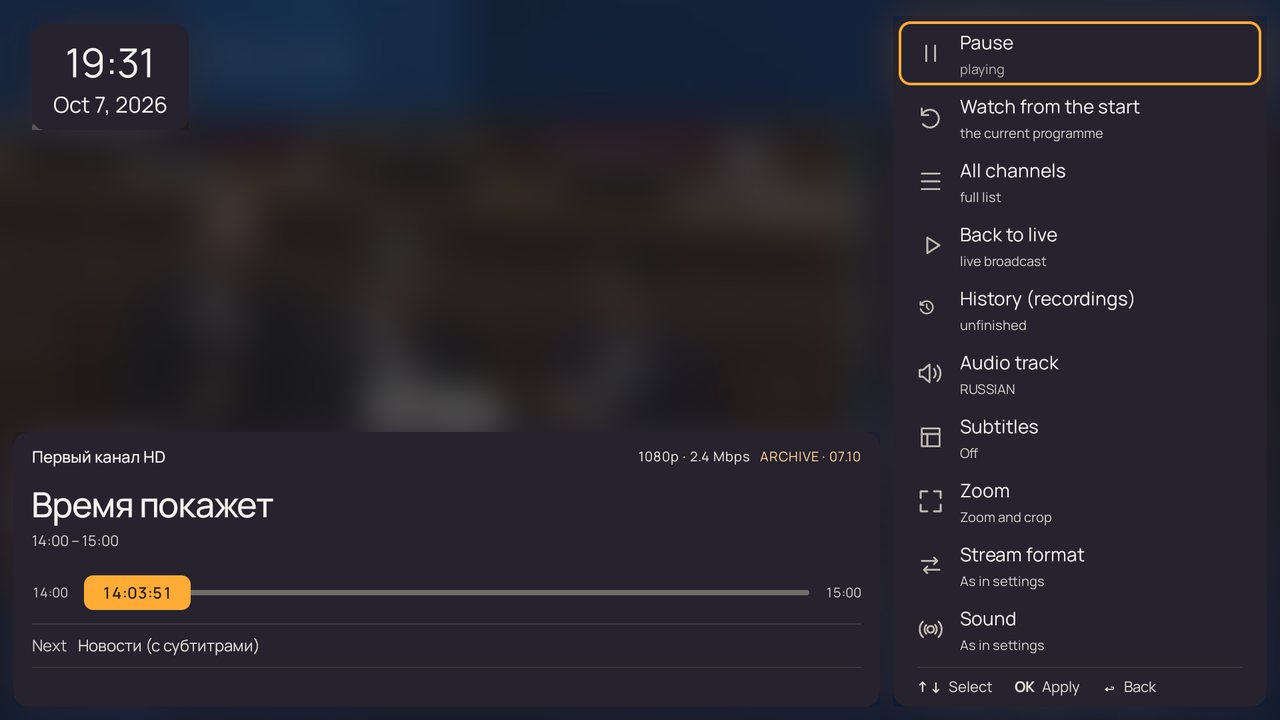
- "What's on" bar. Channel, show, time and time left, the next show, stream quality.
- Pause and "Watch from the start". Pause live TV or restart the current show — if the channel has an archive.
- Audio and subtitles. Audio track, subtitles, 5.1 surround sound for a receiver or soundbar.
- Picture. Zoom: fit the frame, crop the edges or stretch. Stream format and statistics — speed, frames, resolution.
- Clock over the video. A clock with the date in the corner you choose — under Appearance in settings.
5Quick channel list
Right arrow in live TV opens the channels of the current group over the video — switch without stopping playback.
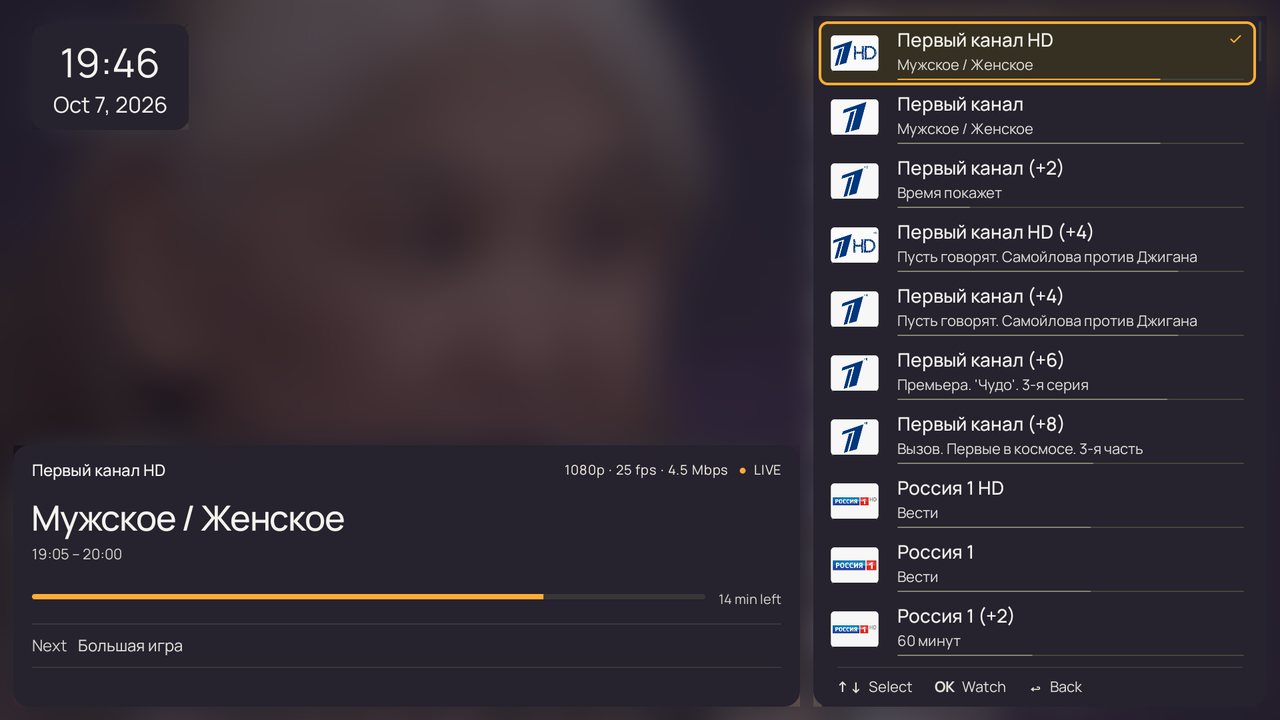
- What's on every channel is shown under its name, with a bar of how much has passed.
- Logos and numbers of channels are turned on and off under Channels and playlist in settings.
- Left arrow opens recent channels — the ones you watched last.
6"All channels" and the programme guide
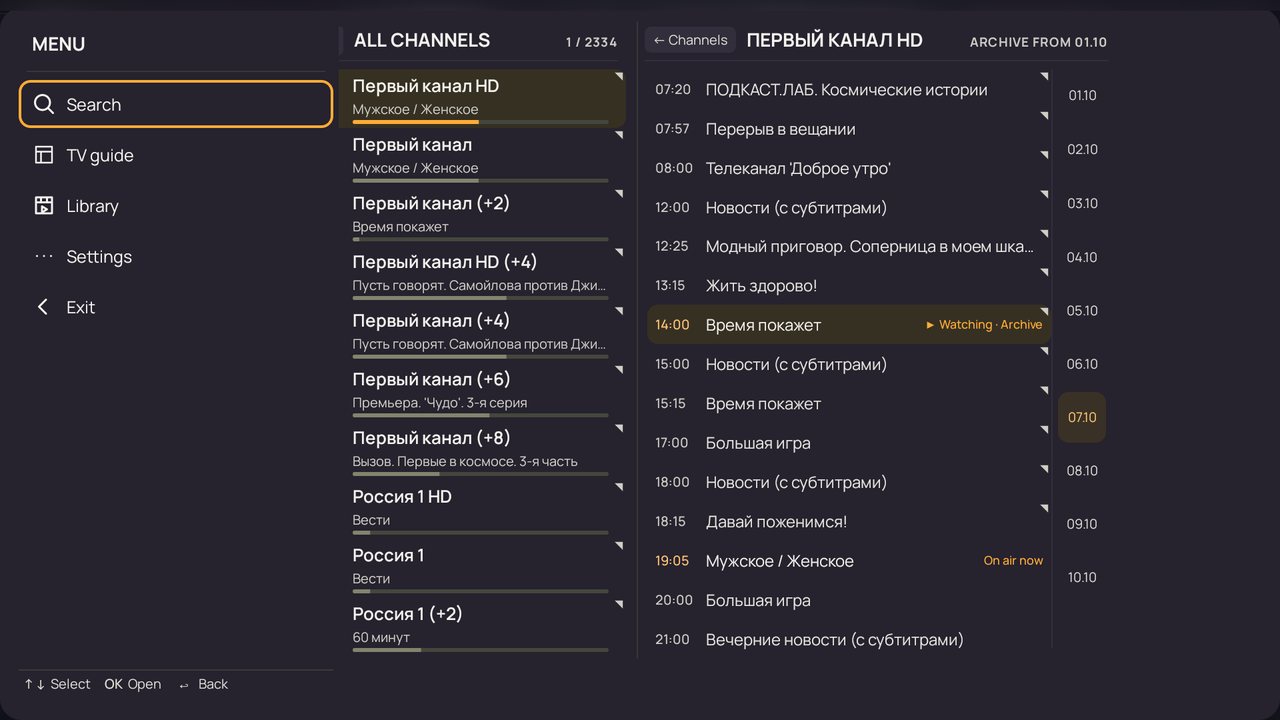
Up or Down opens the main screen: groups, channels, a week of programmes and show details — all on one screen.
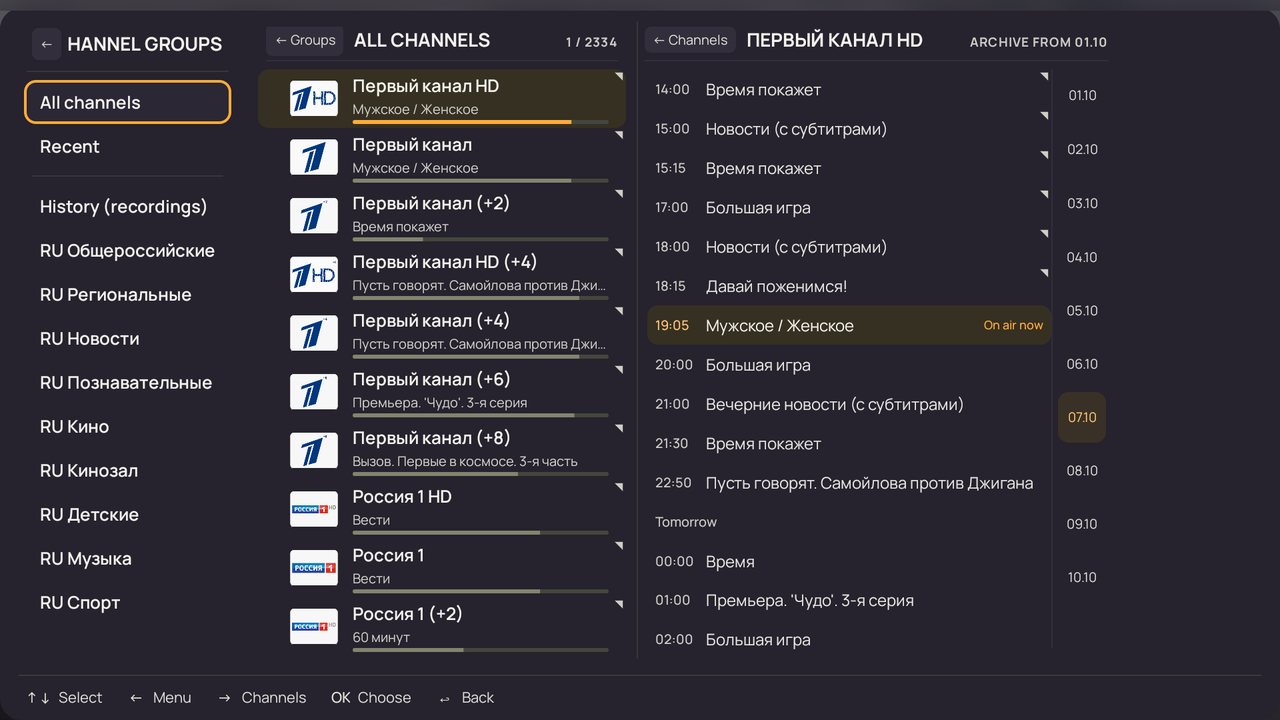
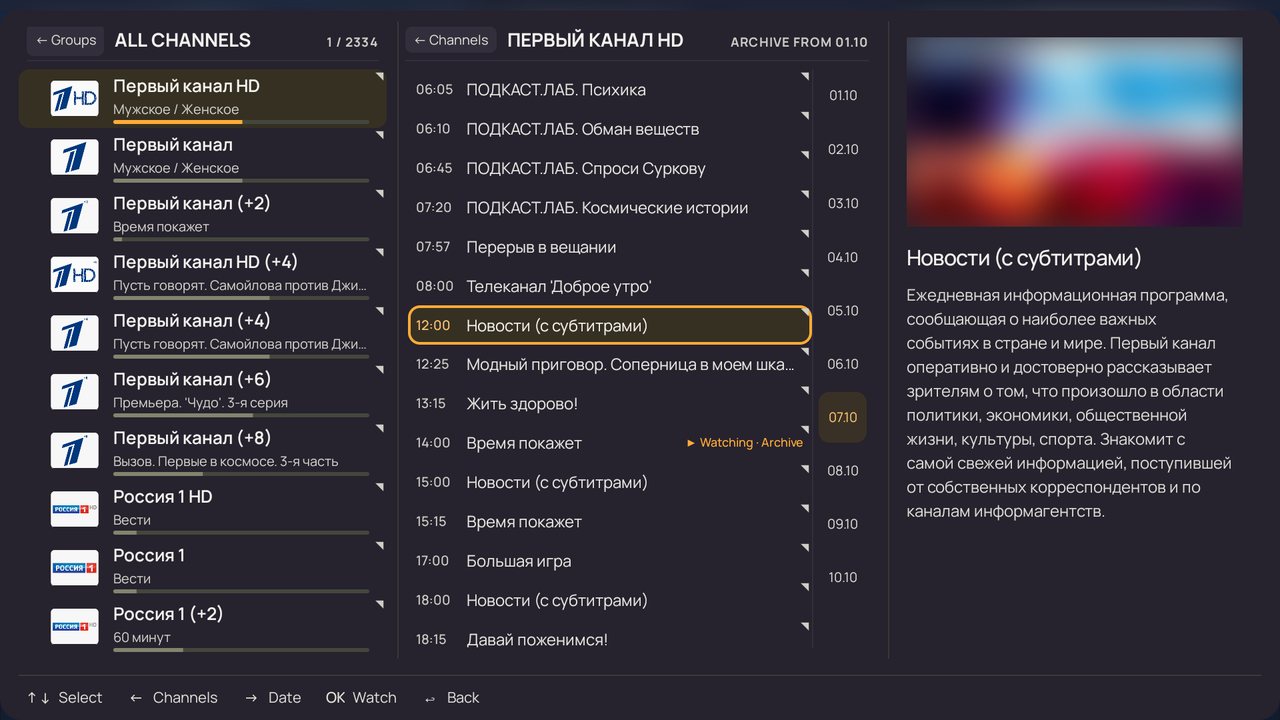
- Channel groups. On the left: "All channels", "Favourites", "Recent", "History (recordings)", "New" and your playlist's groups.
- Programmes. Right arrow moves into the channel's programmes: past shows, the current one marked "On air now".
- Dates. On the right: archive days and coming days — pick a day and scroll its programmes.
- OK on a show. The current one — live TV, a past one — its recording, a future one — a reminder: the player switches to the channel when it starts.
- Details. A picture and description of the selected show.
- Locked groups and channels. Adult ones and the ones you chose are behind a PIN set in your web account.
7Sections menu
From the groups column, Left arrow opens the app's sections menu.
8TV guide
A programme grid like in big TV players: channels in rows, time across, a "now" line. You see at once what's on across the whole group.
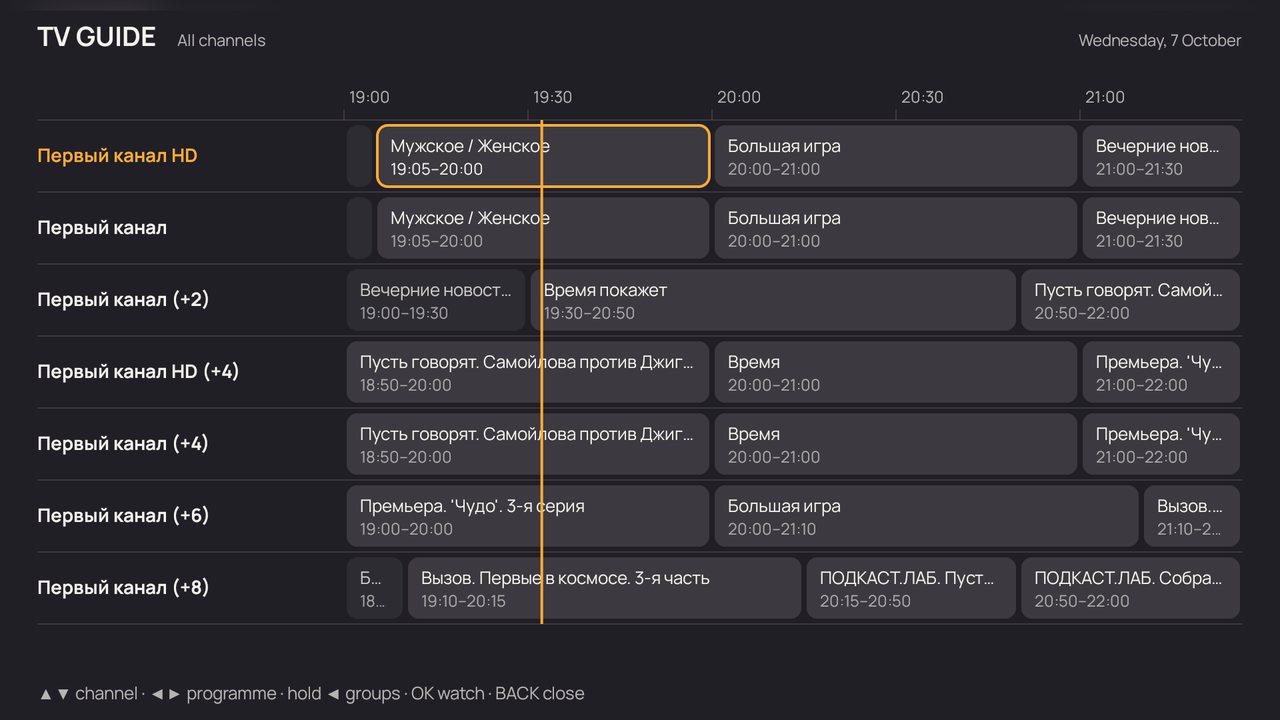
- Up / Down — channel, Left / Right — show, ⏪ ⏩ — an hour back or forward.
- OK on the current show starts live TV, on a past one — its recording.
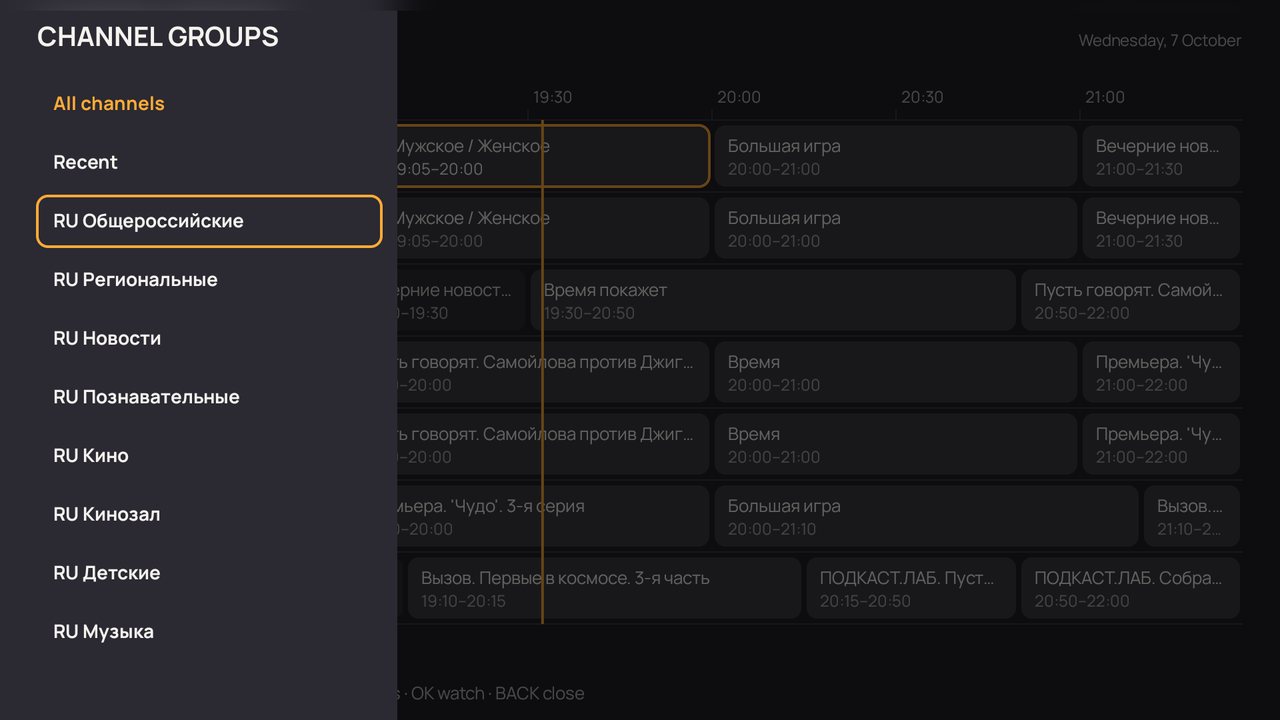
- Hold Left to open channel groups: pick a group and the grid shows its channels.
- The last group is remembered: the TV guide opens on it next time.
- Light and quick even on weaker boxes — programmes are loaded a screen ahead.
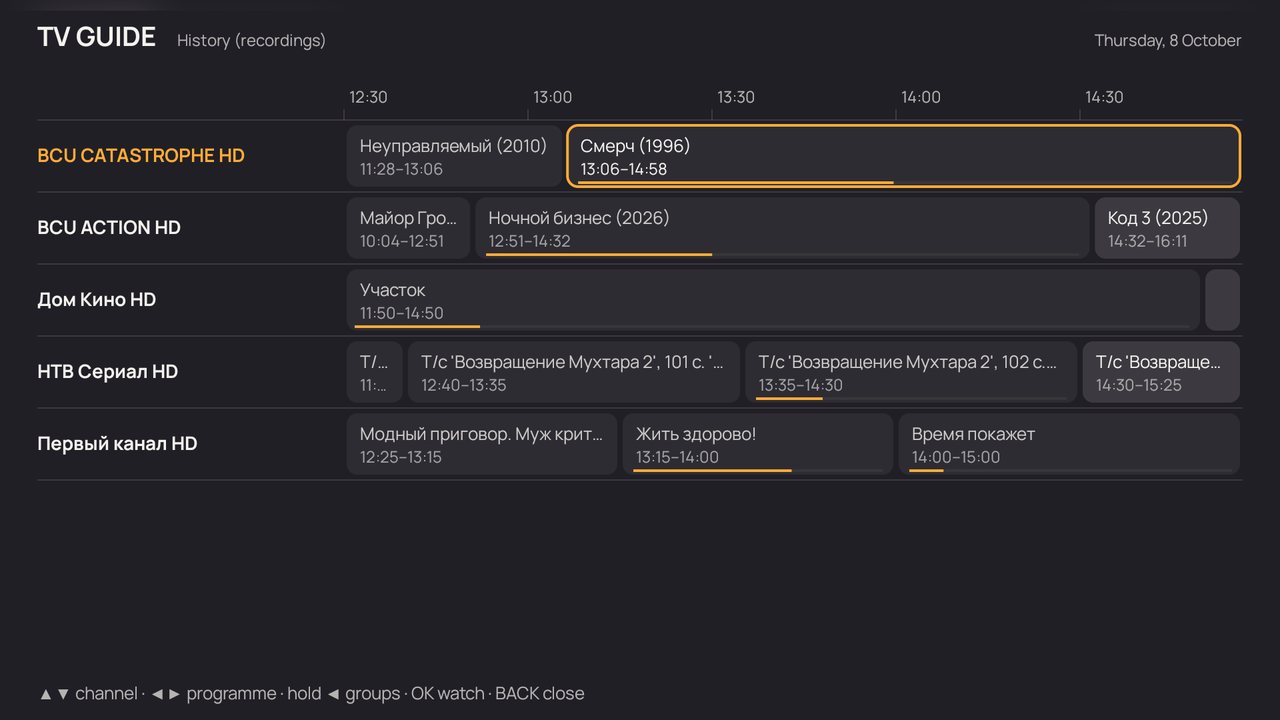
- "History (recordings)" is in the group choice too (hold Left): unfinished shows with a bar showing how much you have watched. OK resumes the recording right where you stopped.
9Search channels and shows
One search covers both channel names and show titles: "24" finds both a "24" channel and a show called "24". A past show you find opens as a recording.
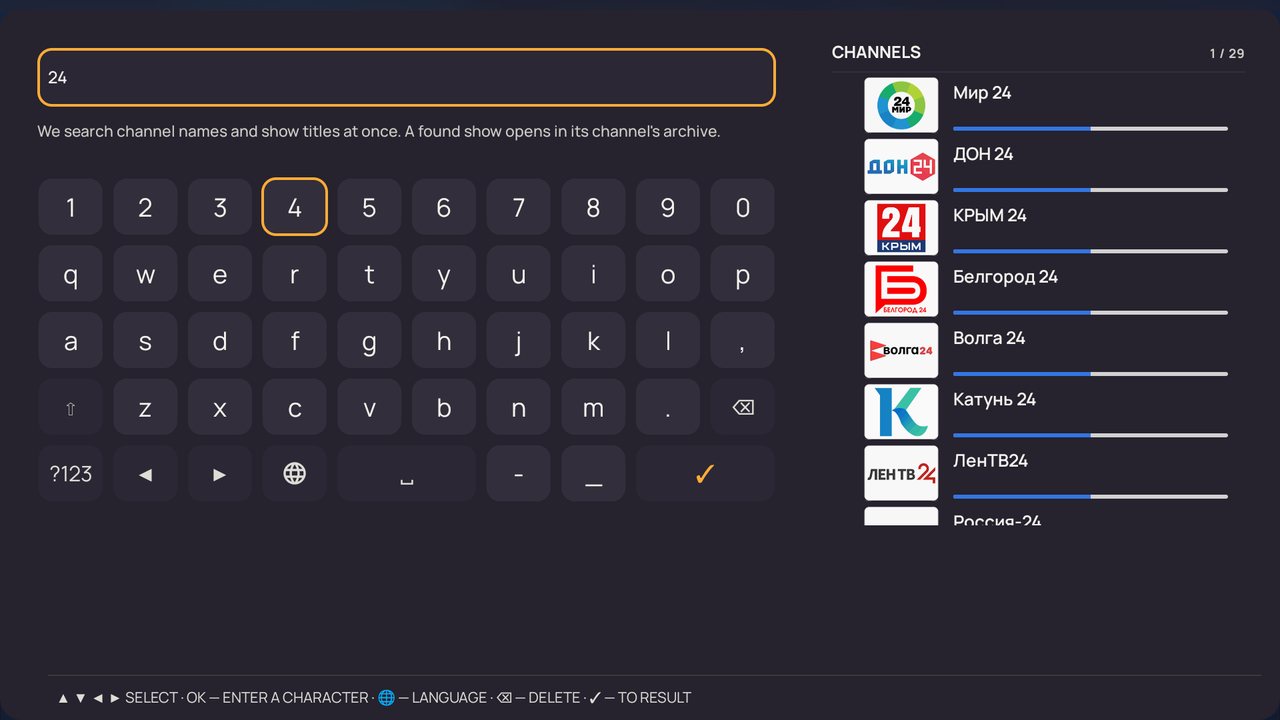
- Built-in keyboard made for the remote: digits, letters, language switch, delete.
- Results on the right appear as you type — channels and shows separately.
- The Search button of a full remote opens search from anywhere in live TV.
10Catch-up and live pause
If your provider keeps an archive, past shows can be watched up to 7 days back — like ordinary video, with pause and seeking.
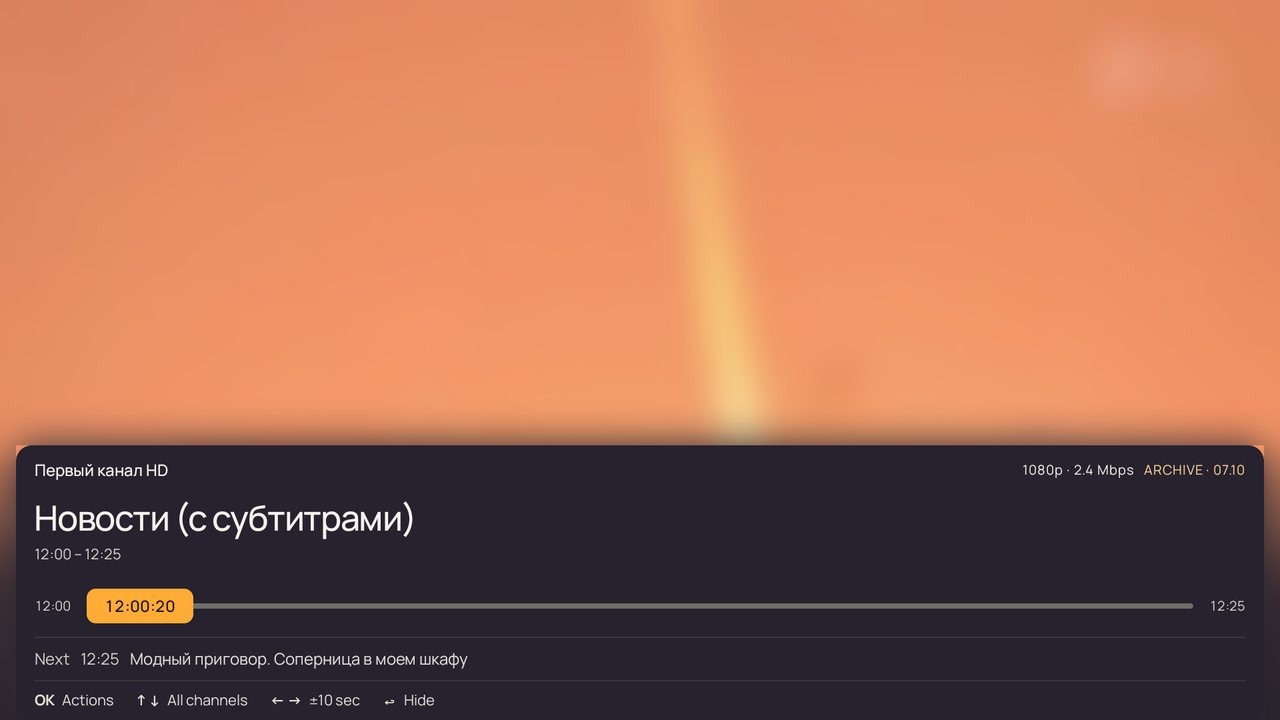
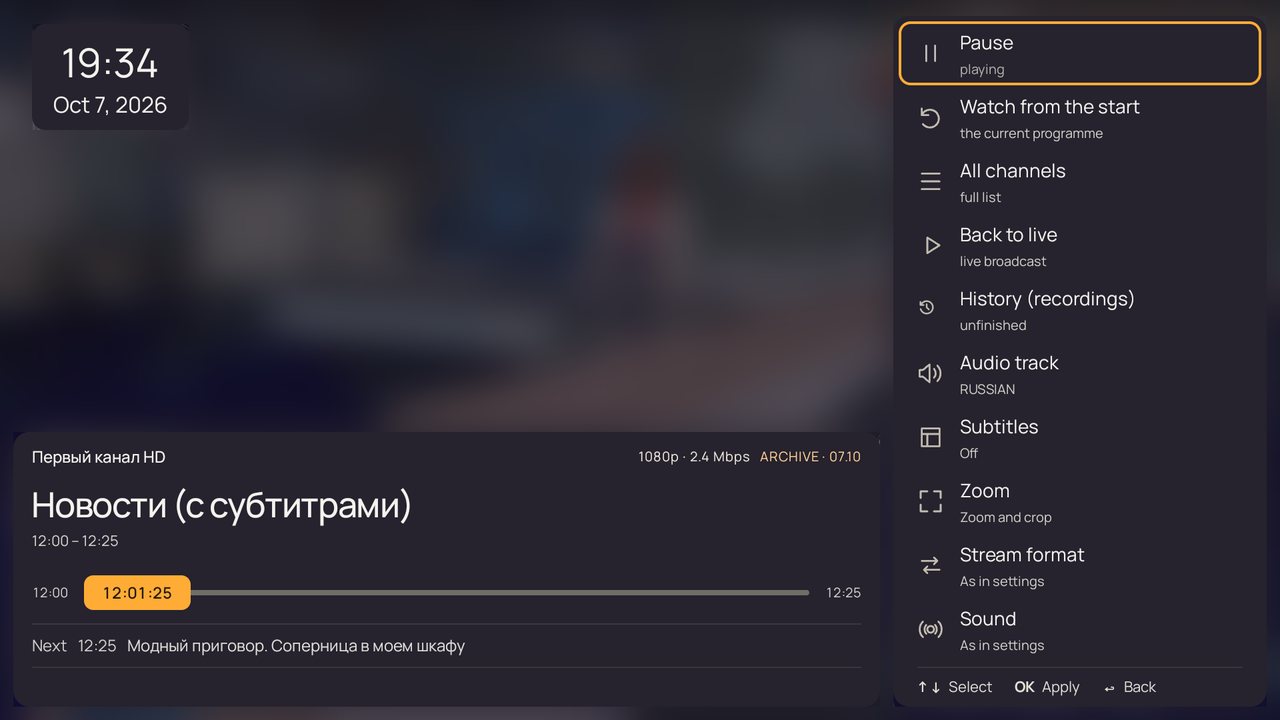
- Accelerating seek. Press Left / Right — 10 seconds; hold — the step grows: 30 seconds, 2, 5 and 10 minutes. The slider shows where you are going.
- "Watch from the start". Restart the current show from the Actions menu — or hold OK on it in the programme list.
- The next show starts by itself when the current one ends.
- Back to live TV — an Actions menu item or the TV button.
- Time-shifted live TV. On channels without an archive the player records a few minutes of live TV itself: you can pause and rewind.
- After switching off the recording continues from the same place as soon as you turn the box back on.
11"History (recordings)"
Unfinished shows from the archive are collected in their own category — get back to yesterday's film in two presses.
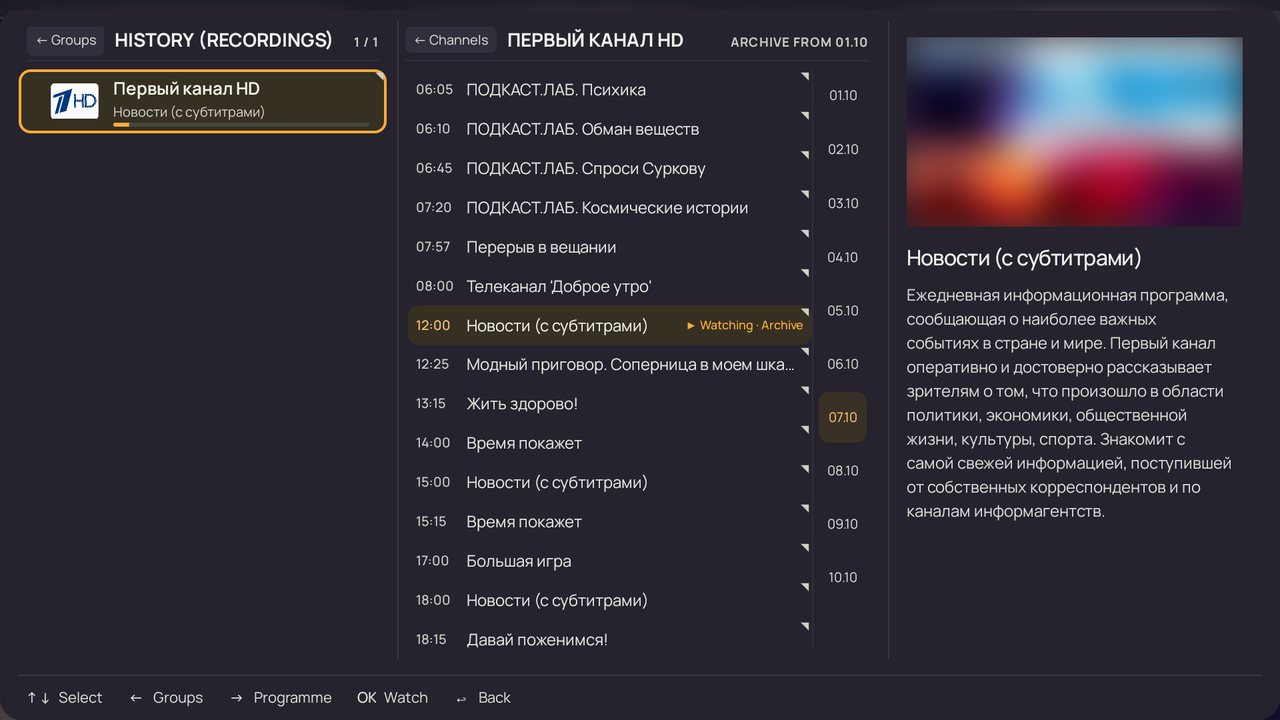
- Where to find it: the "History (recordings)" category among the channel groups and an item in the Actions menu.
- OK on a channel plays the recording exactly where you stopped; the bar shows how much you have watched.
- Left in live TV can open "History (recordings)" instead of recent channels: Settings → Viewing → History button opens.
- Tidy up: hold OK on a channel in “History (recordings)” — “Remove from history”; hold OK on the section itself — “Clear section”.
12Library
Your provider's films, cartoons and series. Open it from the sections menu or with "Library" in the Actions menu.
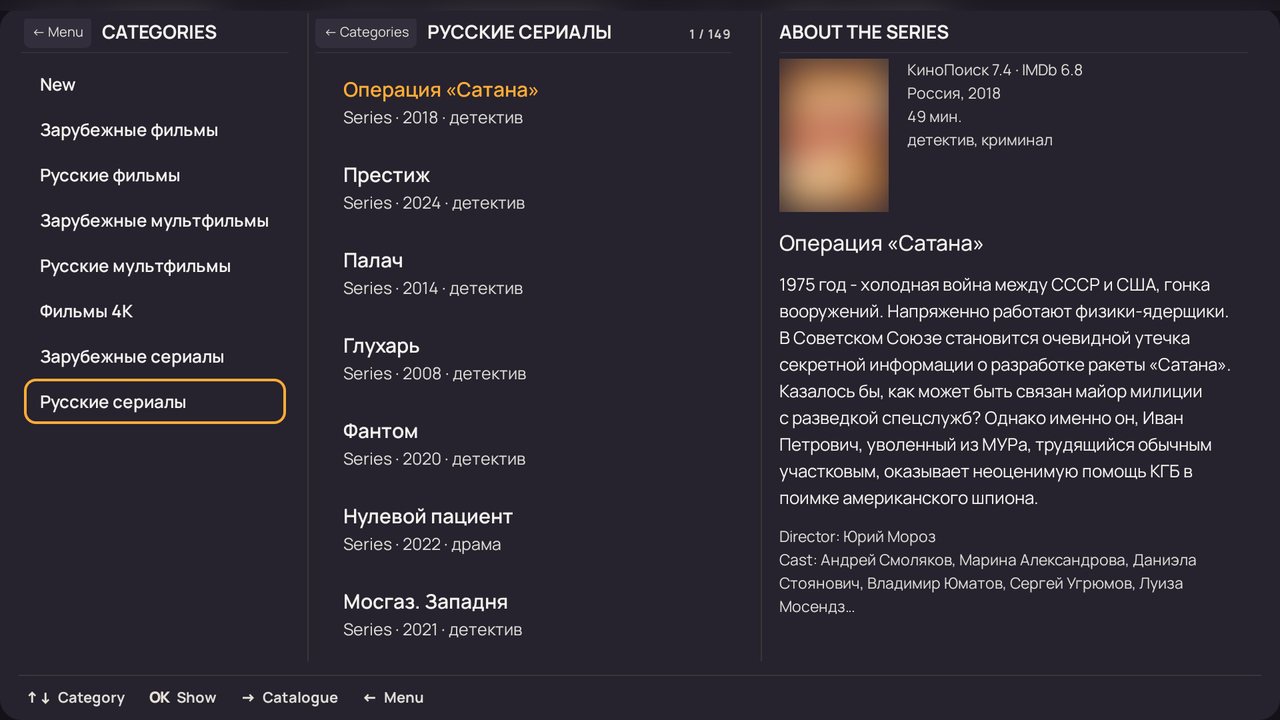
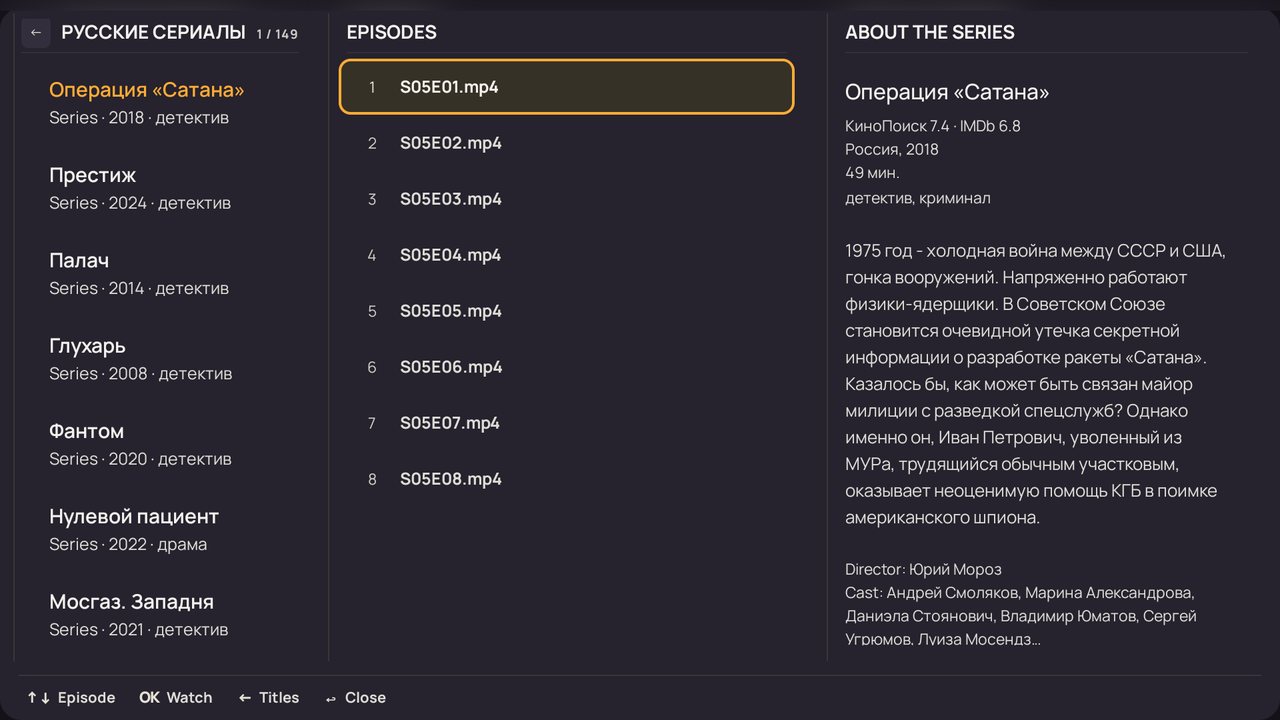
- Categories and "New". "New" is the whole catalogue from the latest additions; categories are as your provider has them.
- Unfinished first. Films you started stand at the top of their category and of "New".
- Description on the right: poster, year, country, length, genres, KinoPoisk and IMDb ratings, director and cast.
- Series: seasons and episodes; "Next" plays the next episode by itself.
- Resume. A film or episode continues where you stopped — even after the device was switched off.
- Search: by film or series title — “Search the media library” in the sections menu.
- View: a list or poster tiles — under Viewing in settings.
- Favorites: hold OK on a film or series (a finger on a tablet or phone) and pick “Add to Favorites” — it appears in the “Favorites” section.
- Filters: “Filters” in the library: sorting (by name, year of release or date added — either way round), year and language (several at once), genre and age (if your provider gives it). “Clear all filters” resets everything in one go.
- Catalogues by link: their own filters — sorting (as the provider lists, by name, newest first, by KinoPoisk rating), decade, country and a minimum KinoPoisk rating.
13Settings
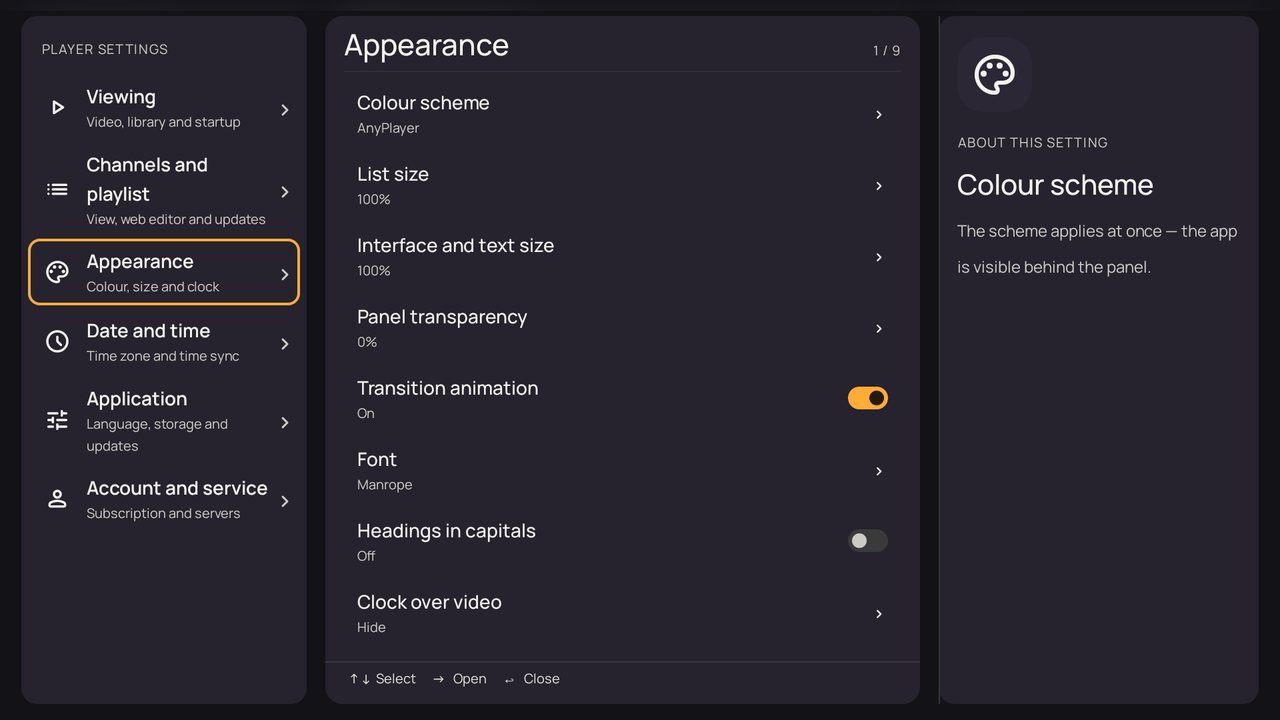
The Settings button on the remote or "Settings" in the sections menu. Sections on the left, items in the middle, a hint for the selected item on the right.
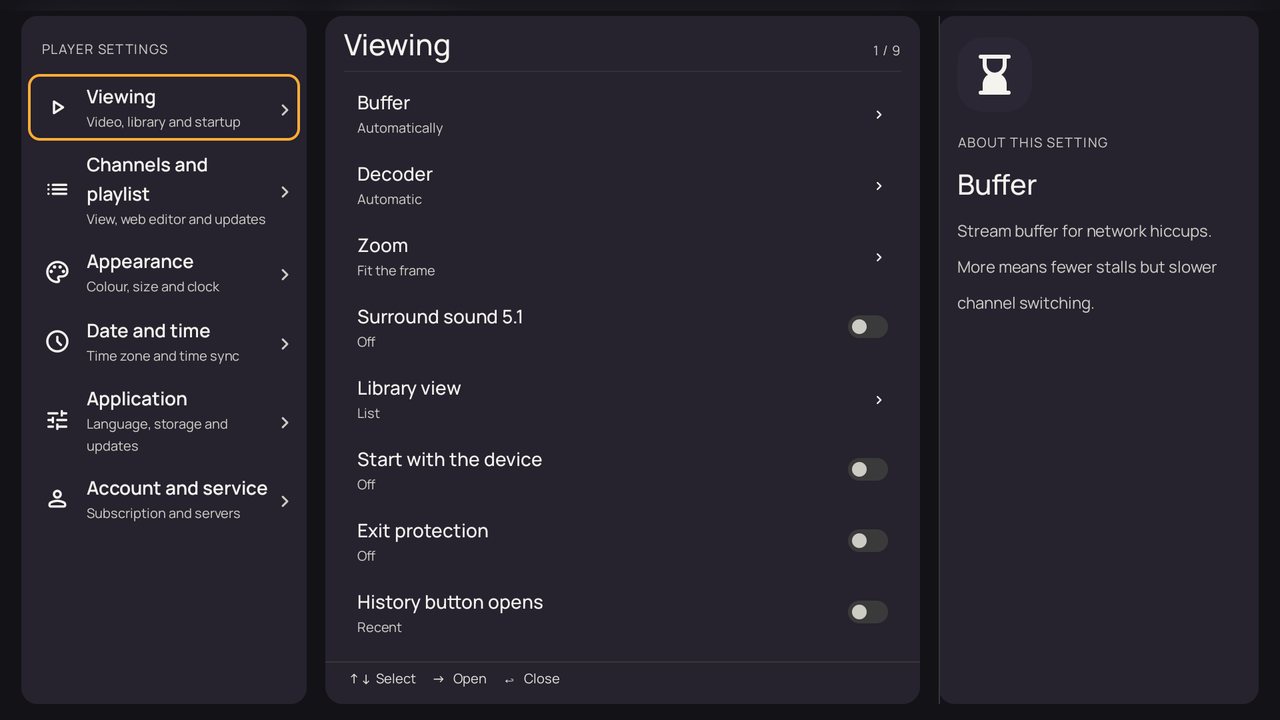
- Viewing: buffer, decoder, zoom, 5.1 surround, library view, start with the device, exit protection, the History button, the Back button.
- Channels and playlist: channel list view, logos, numbers, playlist and guide updates.
- Appearance: colour scheme, list size, interface and text size, panel transparency, font, clock over video, bottom hints.
- Date and time: time zone and time sync — the programme guide and archive depend on it.
- Application: interface language, storage and cache, updates with a "What's new" window.
- Account and service: subscription, viewing server with a speed test, connection check.
- Start with the device. The box turns on — live TV starts straight away.
- Updates. The player offers a new version itself and briefly tells what's new in it.
14Channel at startup
What the player plays by itself when it starts — set in Settings → Viewing → Channel at startup.
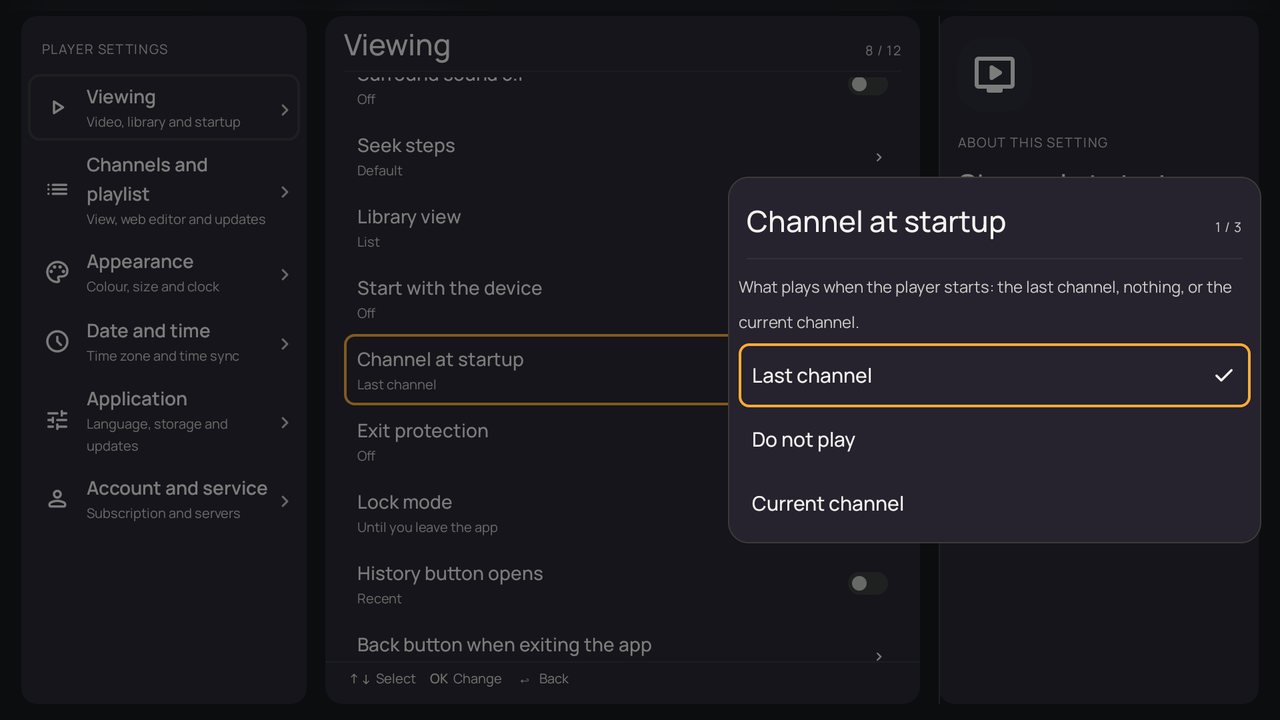
- "Last channel" — as before: the channel you watched last. Channels behind a code and adult channels never start by themselves — the last ordinary one plays.
- "Do not play" — the player opens All channels (or the library if you were there) and plays nothing until you choose.
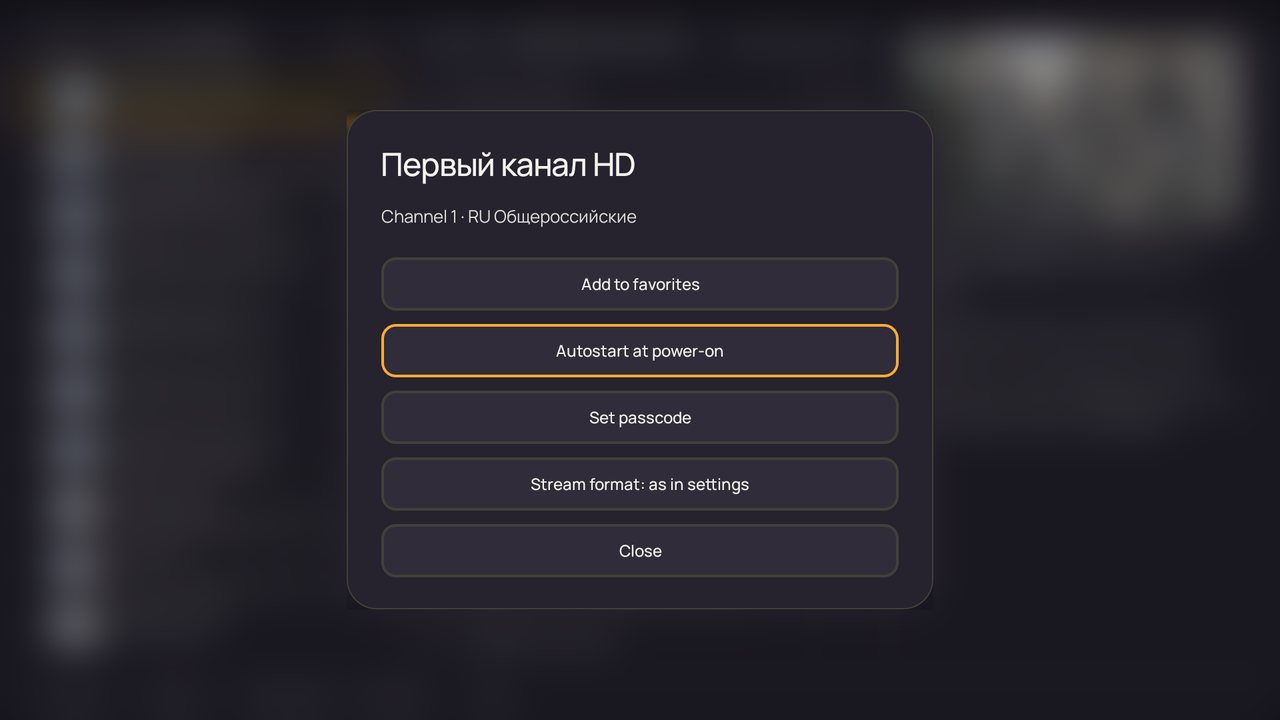
- "Current channel" — the channel that was on when you picked this option, and always that one after. The quickest way: hold OK on a channel in the list and pick "Autostart at power-on"; again — "Remove from autostart".
- "Open Favorites" — like "Do not play", but All channels opens right on Favorites: the cursor is on the first channel, its programme on the right. If Favorites is empty, All channels opens.
15Parental controls
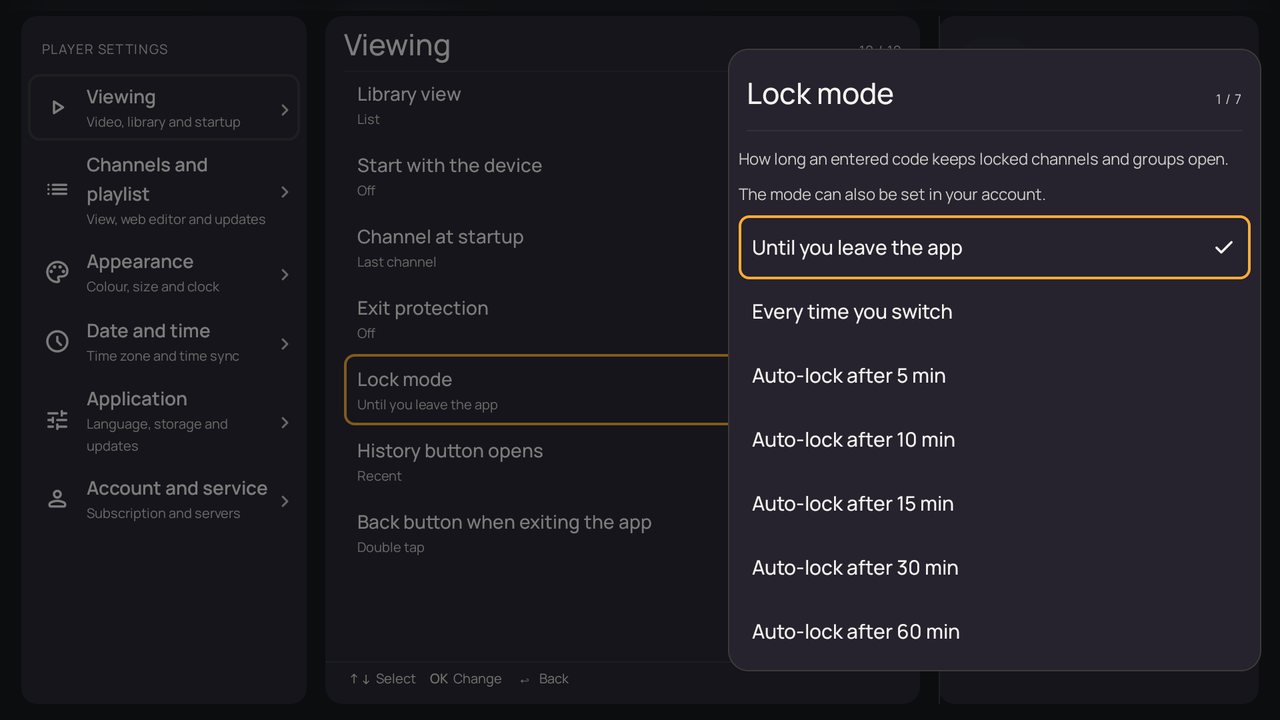
A PIN locks adult content and anything else you choose to hide, and Lock mode decides how long an entered code keeps it open.
- PIN — 4 digits, set in your account on the device card ("Device PIN"). Adult groups and channels ask for it, and so do the groups and channels you lock yourself.
- Settings and exit can be locked too: "Ask for the PIN to open settings" in your account and "Exit protection" in Settings → Viewing.
- "Until you leave the app" — enter the code once; it works until you leave the app.
- "Every time you switch" — the code is asked on every switch to a locked channel and every time a locked group opens.
- "Auto-lock after 5–60 min" — the code works for the chosen time: 5, 10, 15, 30 or 60 minutes, picked in the same window. A countdown warning appears 30 s before the end; Back puts the lock off for the same time again.
- Where to choose: Settings → Viewing → Lock mode, or your account — the device card, "Lock mode" field. "As on the device" leaves the choice to the box.
16Phones and tablets
On a phone or tablet everything works by touch: buttons under the video, lists and menus are larger than on a TV.
- A row of buttons under the video: "All channels", "Categories" and "More" with the same actions as on a TV.
- Full screen: turn the phone or tap the button on the video; the navigation bar hides.
- A tablet in landscape — two columns: channels on the left, video and programmes on the right.
- Gestures: a tap shows the buttons, a tap on a show plays its recording or sets a reminder.
17Web account
Everything that is awkward with a remote is done in your account at anyplayer.cc — from a computer or a phone.
- Devices: names ("Living room", "Kids' room"), app version, a channel list of its own for each.
- Playlists and library: provider links, TV guide, scheduled updates.
- List editor: order, groups, renaming, favourites, channels from several playlists.
- Protection: a PIN for adult groups and channels, for settings and for exiting.
- TV remote scheme: your own button assignments and ready-made schemes — sent to the TV in one click.
18Frequently asked questions
Short answers to the most common questions.
Does AnyPlayer provide the channels?
No. AnyPlayer is a player: channels, catch-up and the library come from your IPTV provider via a playlist link. The player makes watching convenient.
Which playlists are supported?
M3U links and the formats for Navigator OTT Player and Televizo (OTTplay); the TV guide is XMLTV. If your provider gives a library link, it opens too.
Why does a channel have no catch-up?
The archive is kept by the provider, and not every channel has one. A channel with an archive shows past shows and "Archive from …". Without an archive the player offers pause and time-shifted live TV.
How do I continue something unfinished?
Shows from the archive are in "History (recordings)", films and episodes come first in their library category. After the box is switched off, playback resumes by itself.
How do I seek quickly?
Hold Left or Right: the step grows from 10 seconds to 30 seconds, 2, 5 and 10 minutes. The ⏪ ⏩ buttons work too. Each stage can be changed: Settings → Viewing → “Seek steps”.
What is the TV guide?
A programme grid for a whole channel group. It opens from the sections menu (Left from the groups). Hold Left in the TV guide to choose a group.
Can I change the remote buttons?
Yes: "TV remote scheme" in your web account. Take a ready-made scheme like TiviMate or OTT-play or make your own.
How do I hide the hints at the bottom?
Settings → Appearance → Bottom control hints. Without them, lists get more room.
How do I lock adult channels?
Set a PIN in your web account: for adult groups and channels, for settings and for exiting the app.
The video stutters or freezes
Change the viewing server under Account and service — it has a speed test. Buffer and Stream format under Viewing help too. Stream statistics in the Actions menu show speed and frames.
Can I make the text bigger?
Yes: Appearance → List size and Interface and text size.
How do I close the app with the remote?
Press Back in live TV with no menus open. To avoid exiting by accident, turn on the double press under Viewing.
Do I need to update the app manually?
No. The player checks for updates itself and shows a window with a short "What's new"; installing takes one button.
anyplayer.cc doesn't open — does the player work?
Yes. Channels open from the saved list, and the app finds a backup route to our server by itself. Your account is also available at v2.anyplayer.app.
How do I make the code be asked every time?
Pick "Every time you switch" in Settings → Viewing → Lock mode — or the same on the device card in your account. Then the code is asked on every switch to a locked channel and every time a locked group opens.
The picture judders, but there's no buffering — what can I do?
Turn on "Match display frame rate" in Settings → Viewing. European channels run at 25 or 50 frames per second, while the screen usually sits at 60 Hz, so frames are shown unevenly. With the setting on, the screen switches to the channel's rate. It goes dark for a second when the rate changes — that's expected.
Ready to try?
Install AnyPlayer and link your device to your account — it takes a few minutes.